

MRI Cold Head Compressor Shutdown – Troubleshooting Guide
Jul 2, 2025
An MRI cold head compressor shutdown occurs when the cooling mechanism for the MRI magnet fails to function properly. This critical situation can result in...

Jul 1, 2025 | Tech Tips
Questions, Comments, Concerns?
MRI Cold Head Compressor Shutdown – Troubleshooting Guide
Jul 2, 2025
An MRI cold head compressor shutdown occurs when the cooling mechanism for the MRI magnet fails to function properly. This critical situation can result in...

Calibrating Image Intensifier Power Supply on Siemens Fluoroscopy Systems
Jul 2, 2025
Hi, I’m Kevin from DirectMed Imaging, and today we’re going to talk about using your test certificate for your image intensifier on Siemens fluoroscopy systems....

Proper Maintenance for MRI Host Computer
Jul 2, 2025
Hi, this is Joe with DirectMed Imaging, coming to you today with another tech tip. Today, we’ll be discussing the proper maintenance of your MR...

MRI System Cold Head Assembly Tips – Tech Tips by DirectMed
Jul 1, 2025
Today, I’m coming to you with another tech tip about your MRI system. We’ll discuss your cold head assembly and things to check when you’re...

Your Differentiating Asset, Your In-House Staff
Nov 3, 2021
Be sure to view our service and support offerings and reach out to us to learn more about DirectMed Imaging in-house imaging solutions.
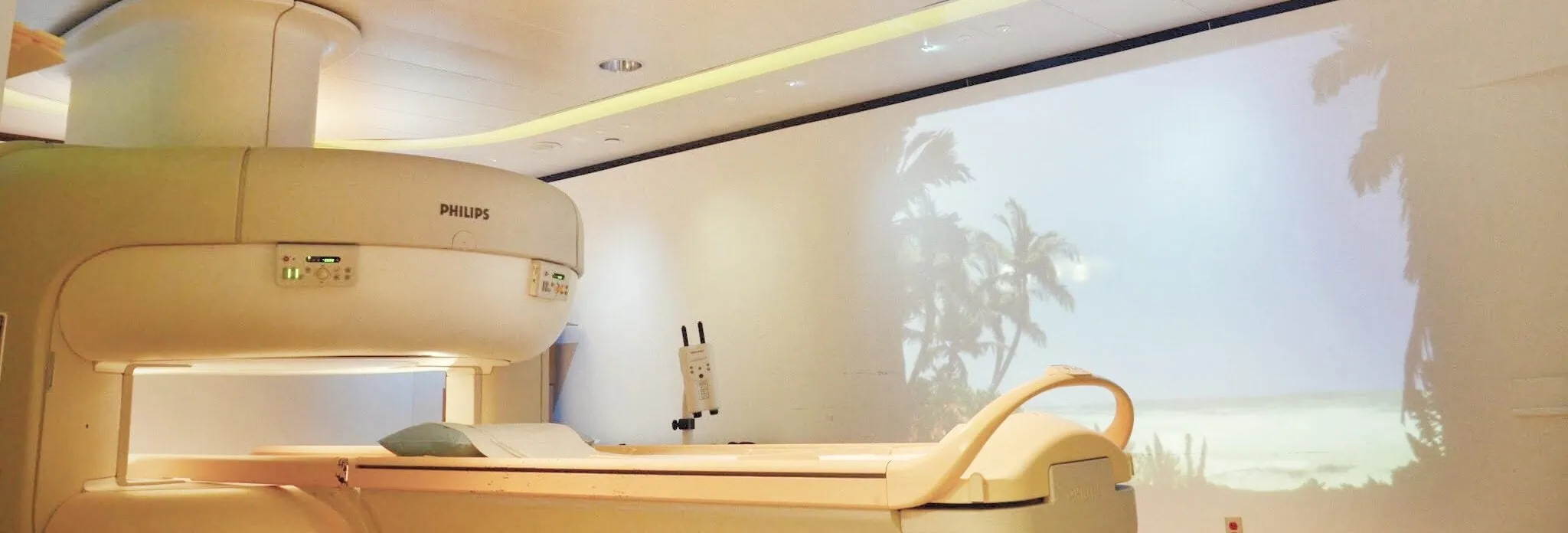
Ways to Differentiate Various Types of MRI Scanners
Aug 5, 2021
It’s absolutely necessary for clinics nowadays to get an MRI scanner. Considering it’s the best medical machinery for diagnostic imaging, it can be a massive...

When It Comes to Your MRI System, What Is – End of Life
Jun 3, 2021
There will always come a time when buying a new MRI system is necessary. A good way to go about this is through consulting an...

What You Can Expect from CT Scanners in the GE Optima Family
May 28, 2021
If there is any widely-known name and brand in the CT scanner world, it is GE. From its Hispeeds and Optimas, GE has been incredible...

Dec 11, 2019
In this tip, Kevin covers using a break out box when troubleshooting your Siemens Definition CT system. A good way to isolate and measure problems...
Apr 3, 2019
In this tip we cover when you may need to go into uncontrolled mode and how to safely go into that mode as well. Uncontrolled...